See it in action
From encrypt to decrypt in under 2 minutes.
Watch the full workflow — a lawyer encrypts a confidential brief and their client unlocks it without installing a single app.
▶ 90-second product demo
The entire process — from protecting your files to your client opening them — takes less time than writing an email.
Five steps in FileLocker, start to finish, usually under a minute.
After purchasing FileLocker, you receive a license key by email. Enter it once to activate the software. Takes 30 seconds. You never need to do it again.
Add your firm's name, logo, and brand colors to FileLocker. When your client opens their files, they see your firm's branding — not ours. It looks like your own professional secure delivery system.
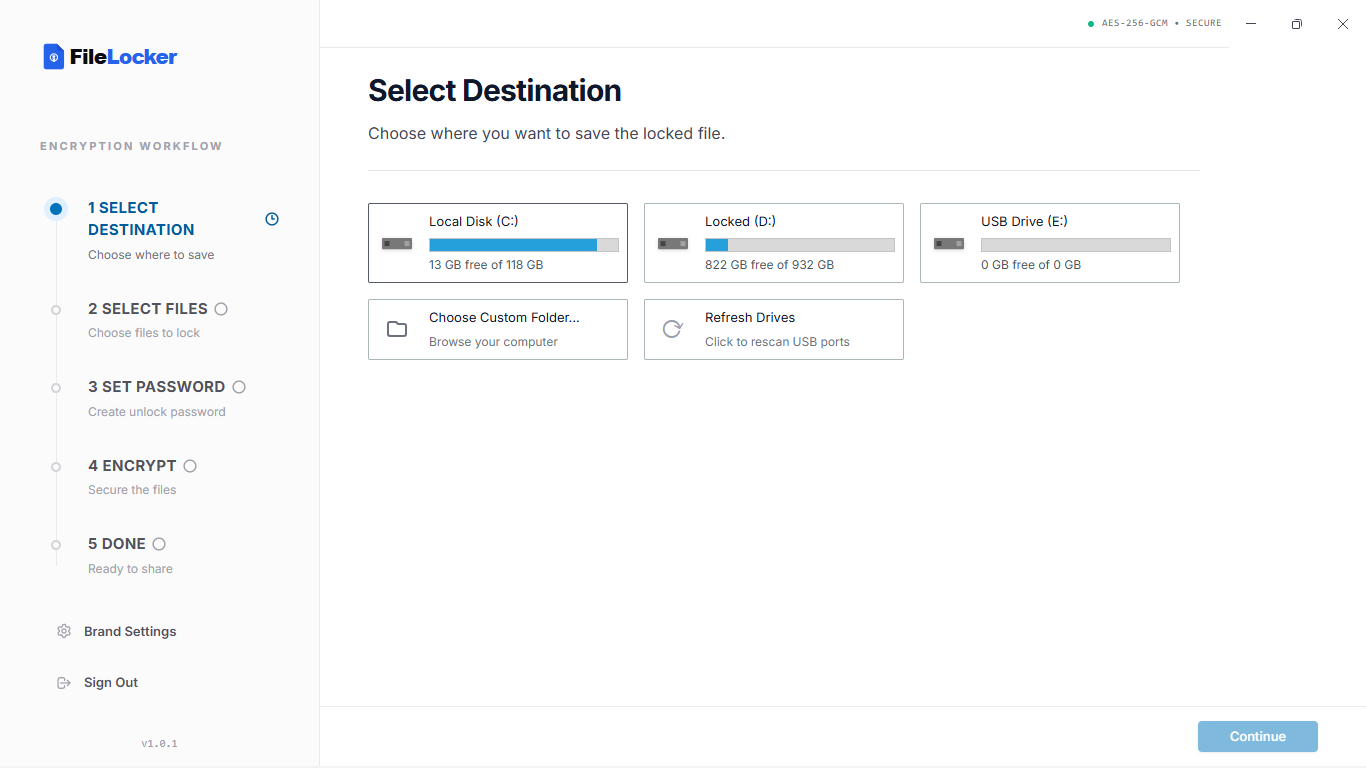
Select any USB drive plugged into your computer. FileLocker shows you all available drives with their available storage. Pick the right one and continue.
Browse your computer and choose the file or folder you need to send. Any format, any size — up to 10 gigabytes and beyond. If you select a folder, FileLocker automatically bundles everything inside it.
Two optional settings most professionals love:
· Auto-delete the original file from your computer after locking — so no unprotected copy remains
· Hide the real file name — so even the document name stays private (e.g., your client's file appears as "Secure_Data" instead of "Divorce_Settlement.pdf")
Type a strong password — or let FileLocker generate one for you automatically. Add an optional hint to help your client remember without giving away the password itself. The password is never saved anywhere on your computer or any server.
Click Lock Files. FileLocker protects your documents and saves everything to the USB drive in seconds. A green confirmation screen confirms it worked. Hand the drive to your client.
Four steps. No install. No account. No internet connection required.
Your client inserts the USB drive and double-clicks one file. It opens instantly in their web browser.
Nothing downloads. Nothing installs. No account required. If they can open a website, they can open their documents.
Note: Your client will see your firm's name and logo on this screen — not FileLocker's. It looks like your own professional system.
Your client types the password you shared with them separately (by phone or text — never on the USB itself). The optional hint you added appears here if they need a reminder.
Their browser unlocks the files entirely on their computer — no data is sent to any server. A save dialog appears and their documents are saved directly to their device. Done.
Share the password separately from the USB drive. Call your client, text them, or tell them in person. Never write the password on the drive or include it in the same package. This separation is what makes the delivery genuinely secure.
Every file is encrypted with AES-256-GCM, the same cipher standard approved for top-secret data. Your password never becomes the encryption key directly — that would be too easy to guess-and-check.
Argon2id turns your password into a cryptographic key using deliberately heavy memory and time costs, making automated brute-force guessing computationally impractical, even on powerful hardware.
There's no master key, no recovery service, and no way for FileLocker to unlock a vault on your behalf. That's what makes the encryption real instead of theatrical.
Watch the full workflow — a lawyer encrypts a confidential brief and their client unlocks it without installing a single app.
No. Both encryption and decryption happen entirely offline, on the local device. No step in the process requires a network connection.
Yes — select a folder instead of a single file, and FileLocker automatically zips its contents in memory before encrypting the archive as one vault.
They can simply try again. On Standard there's no attempt limit; Pro lets you configure a lockout after a set number of failed attempts, with a recovery key held by you.
No. Opening an HTML file and using their browser's built-in Web Crypto API requires no elevated permissions of any kind.
Every time you hand over a plain drive, you are one lost USB away from a data breach, a compliance problem, and a client who no longer trusts you. FileLocker fixes that. In under 60 seconds.